Field Service · 8 min read
How to Turn Finished Jobs into Invoices Automatically (and Follow Up on Unpaid Ones)
Learn how to automatically turn completed jobs into invoices and follow up on unpaid ones with a 6-step workflow and reminder templates.
Nasim
Your technicians wrap up jobs in the field all week, yet completed work orders still sit on your office desk Friday afternoon. By the time you type up invoices and chase past-due bills, cash is weeks behind the work you already paid your crew to do.
Connecting job completion straight to invoicing and a fixed follow-up schedule gets bills out the same day work finishes.
How do you turn finished field jobs into invoices without retyping work orders?
When should you follow up on unpaid invoices, and what should you say?
Which tools handle invoicing and payment reminders without sending messages unchecked?
Read on for the 6-step workflow, fill-in reminder templates, and tool options for your shop.
Why do finished jobs and unpaid invoices pile up in service companies?
Invoices pile up when field completion and office billing run as two separate steps, leaving 1 to 3 office staff buried in data entry and overdue follow-ups. Here is what that delay costs:
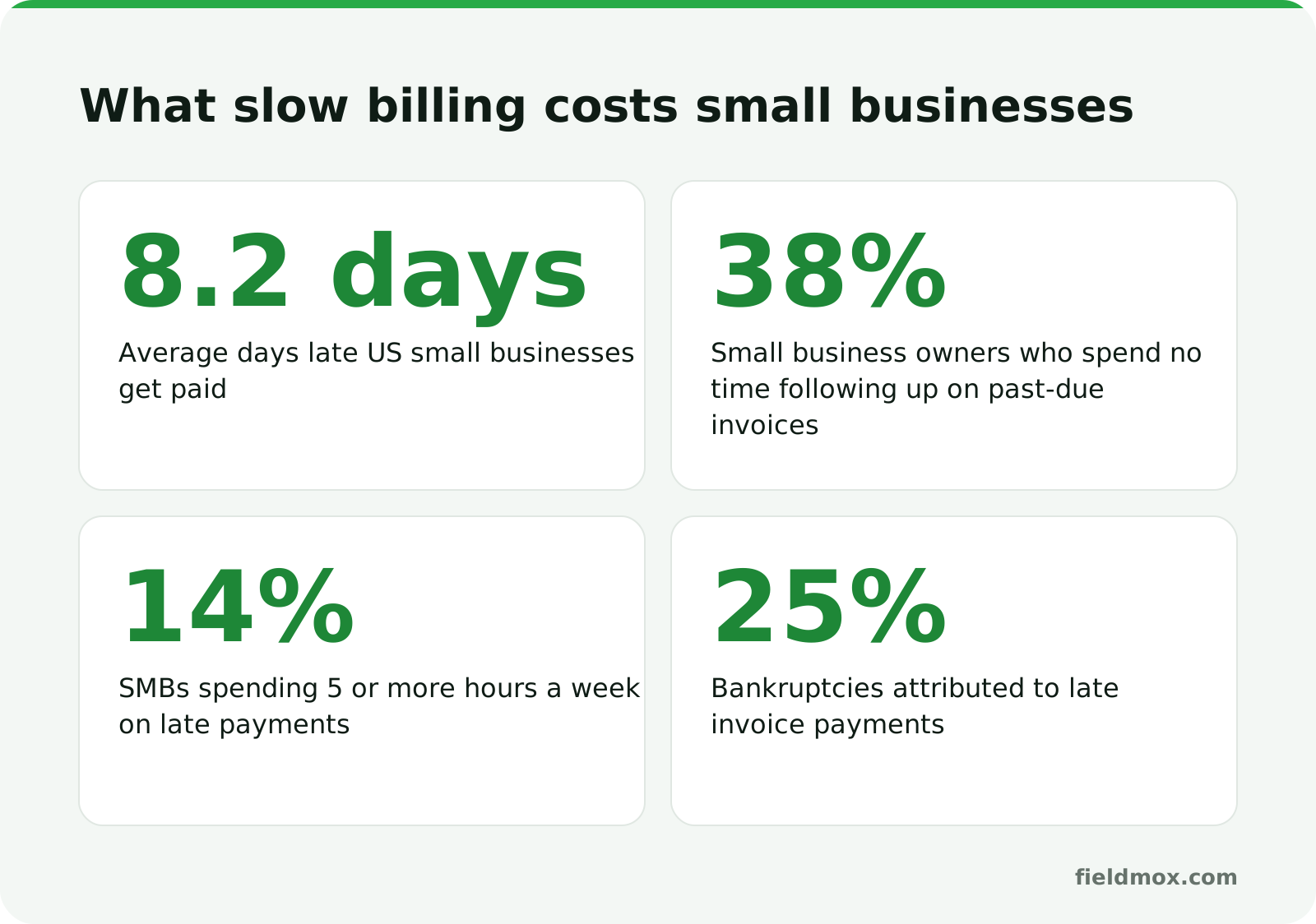
Late payments are the norm: Half of US invoices are overdue per the Atradius 2024 report, and US small businesses get paid 8.2 days late on average (Nudgepay, citing Clockify).
Unfollowed invoices stay unpaid: 38% of small business owners spend no time following up on past-due invoices (Nudgepay).
Manual chasing drains office hours: 14% of SMBs spend 5 or more hours a week on late payments, which Nudgepay calculates at 260 hours a year, or about $19,500 at $75 per hour.
Unpaid invoices close businesses: Clockify statistics cited by Nudgepay attribute 25% of all bankruptcies to late invoice payments.
An office can work full days and still fall behind when billing runs by hand. Manual entry traps experienced staff in retyping work orders instead of running the schedule and watching cash flow.
What is the difference between job-to-invoice automation and AR automation?
Job-to-invoice automation turns completed work orders into ready invoices, while accounts receivable (AR) automation collects payment.
Job-to-invoice automation turns a finished field job into a draft or ready invoice by pulling line items, site details, and pricing straight from the job or contract.
Accounts receivable (AR) automation manages post-invoice collection, including online payments, accounting sync, and scheduled follow-ups on overdue balances.
Accounts payable (AP) automation manages bills your company owes suppliers and vendors, not invoices your customers owe you.
If your office still spends Thursday nights retyping work orders into invoices, you need both halves connected.
What should you check before automating job invoicing and reminders?
Before you set up any billing workflow, put one clear owner, written billing rules, and one standard for finished jobs in place:
Assign one billing owner: Name the office manager or bookkeeper who reviews invoice batches and approves reminders weekly.
Group customers by billing rule: Tag each account as per-job, monthly consolidated, or contract billing.
Standardize field closeout: Require checklists, photos, and a customer signature before techs leave the site.
Put payment terms in writing: State the due date, online payment options, and late-fee or service-pause terms on every agreement.
Track five billing stages: Move every job from completed to invoiced, sent, overdue, and paid in one place.
How to automatically turn completed jobs into invoices and follow up on unpaid ones
You can run this 6-step workflow in field service software, an accounting app, or a spreadsheet. Replace each bracketed {placeholder} with your customer, job, and company details before sending.
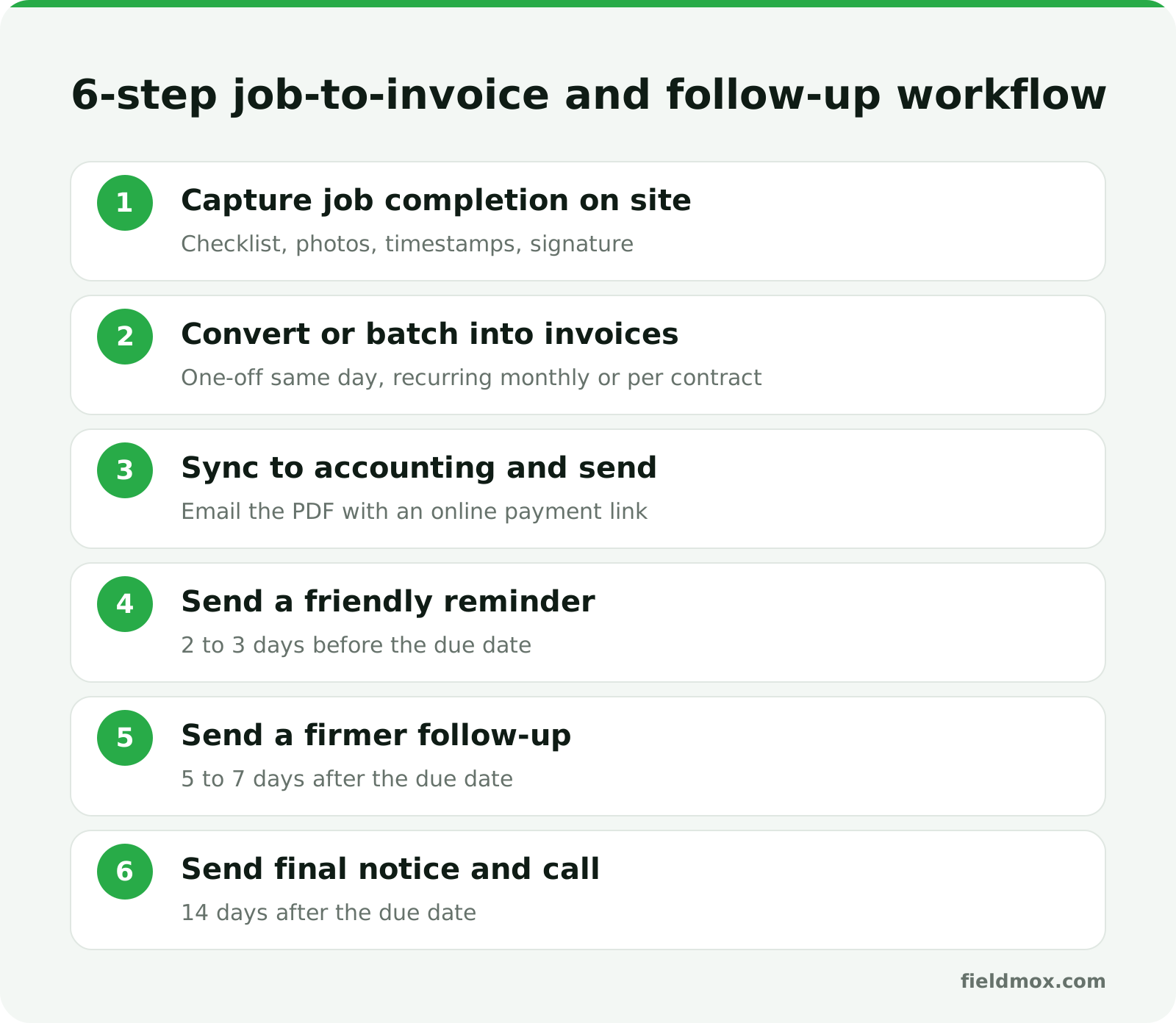
Step 1: Capture job completion in the field, immediately on site
Trigger billing before the truck rolls away so your office isn't chasing half-remembered job notes at 6 p.m.
Have the tech mark the job complete on site with the checklist, photos, arrival and finish timestamps, and a customer signature. Proof of work is saved before the tech drives to the next address.
Step 2: Convert one-off jobs same day, or batch recurring work monthly or per contract
Pull line items and contract prices straight from the job record so missed parts and re-entry mistakes stay out of your bills.
Convert one-off jobs into invoices the same day they finish. Hold recurring contracts and multi-site visits in a ready-to-invoice queue so your office can review and batch them monthly or per contract.
Step 3: Sync to accounting and send with an online payment link, the same day the job finishes
Send the bill while the job is fresh so customers don't stall looking for a checkbook or hunting for a PDF.
Sync approved invoices straight to your accounting software, such as QuickBooks Online, and email the PDF with a direct online payment link.
Step 4: Send a friendly reminder email, 2 to 3 days before the due date
Catch honest oversights while customers simply haven't queued your invoice for payment yet.
Following the three-step schedule from SoloBizStack (2 to 3 days before due, 5 to 7 days after, and a 14-day final notice), have your office send a polite pre-due-date email with the PDF attached and the payment link repeated.
Subject: Friendly reminder: Invoice #{invoice_number} for {service_address} is due on {due_date}
Body: Hi {customer_first_name},
Quick reminder that Invoice #{invoice_number} for {job_description} at {service_address} is due on {due_date}. The open balance is ${invoice_amount}.
You can view the attached PDF or pay online here: {payment_link}.
If your payment is already on the way, please ignore this note.
Thanks, {your_name} {company_name}
Step 5: Send a firmer email follow-up, 5 to 7 days after the due date
By 5 to 7 days past due, your first email was likely buried in an inbox, sent to the wrong contact, or held up by a question about the visit.
Send a factual second email that states the original due date clearly and asks for a specific payment date.
Subject: Past due: Invoice #{invoice_number} (${invoice_amount}) for {customer_name}
Body: Hi {customer_first_name},
Invoice #{invoice_number} for ${invoice_amount} (work completed on {job_date} at {service_address}) was due on {due_date} and still shows as open on our end.
Could you confirm what date we should expect payment, or let me know if there is an issue with the invoice? You can pay online here: {payment_link}.
Thank you, {your_name} {company_name}
Step 6: Send a final notice and call the customer, 14 days after the due date
After two unanswered emails, a third polite note rarely gets a reply because the customer is either avoiding the bill or short on cash.
At 14 days past due, have the office manager or owner send a formal email notice and follow it with a phone call to get a firm payment date, arrange a payment plan, or pause recurring service. Reference late fees or paused work only if those terms are in your signed agreement; if the deadline passes with no reply, pause dispatch and consult an attorney or collections specialist.
Subject: Final notice: Invoice #{invoice_number} (${invoice_amount}) is 14 days overdue
Body: Dear {customer_first_name},
Despite our reminders on {previous_reminder_dates}, Invoice #{invoice_number} for ${invoice_amount} remains unpaid 14 days past its {due_date} due date.
Please submit payment by {final_deadline} at {payment_link}, or call {office_phone} to arrange a payment plan. Per our agreement, accounts unpaid past {final_deadline} are subject to {contract_late_fee_or_service_pause}.
Regards, {your_name} {company_name}
How do you keep job billing and collections from slipping again?
Run the same short loop every week rather than chasing invoices only when cash looks tight:
Require techs to log checklists, photos, and signatures on site.
Convert one-off finished jobs into invoices the same day.
Batch recurring and multi-site accounts monthly or per contract.
Sync approved invoices straight to your accounting software.
Include an online payment link in every invoice and reminder.
Follow the 3-step schedule: 2 to 3 days before due, 5 to 7 days after, and 14 days after.
Call at 14 days past due to resolve disputes, offer a payment plan, or pause service.
Which tools automate job-to-invoice billing and payment follow-ups?
The right tool depends on whether you only need overdue reminders or one platform connecting field jobs, recurring contracts, invoicing, and follow-ups:
Accounting software with built-in reminders: QuickBooks Online caps automatic reminders at three email-only stages without varying by how overdue an invoice is (Nudgepay), and FreshBooks typically caps built-in reminders at two or three basic templates (SoloBizStack).
No-code workflow connectors: Tools like Zapier, Make, and n8n let you wire custom reminder workflows in roughly 30 to 60 minutes one-time (SoloBizStack), though you maintain them yourself and usage costs grow with volume.
Dedicated accounts receivable platforms: Tools such as Chaser offer email, SMS, and phone chasing tied to accounting software, while Payt adds an invoice portal, payment plans, creditworthiness checks, and AI collections prioritization (Nudgepay).
Field service management software: Field service platforms connect job completion, invoicing, and payments in one system. Fieldmox sits between simple job apps (Jobber, Housecall Pro, Workiz) and enterprise suites (ServiceTitan, FieldRoutes).
How to choose the right tool for your office
Check any platform against four billing requirements before switching:
End-to-end handoff: Confirm finished jobs flow into invoices without retyping work orders.
Exact accounting compatibility: Verify whether it syncs with QuickBooks Online, QuickBooks Desktop, or your current ledger.
Human review before sending: Decide if software should send emails automatically or draft reminders your office approves first.
Recurring contract support: Make sure monthly and quarterly agreements schedule visits and line up contract billing together.
How this workflow runs in Fieldmox (by plan)
In Fieldmox, job completion, recurring schedules, invoicing, and reminders run in one place, month to month with no contract, setup fee, or per-AI-action fees (verified October 30, 2026). Every team member who signs in counts as a user; client portal users are free and unlimited.
Field closeout and one-tap invoicing (all plans, starting on Essentials at $79/month for up to 5 users): Techs close jobs in the iPhone or Android app with checklists, photos, customer signature, and arrival and finish timestamps while recurring jobs schedule themselves. One tap turns a finished job into an invoice, with Stripe payments and QuickBooks Online sync.
Invoice batching and AI-drafted reminders (Pro at $149/month for up to 15 users; Unlimited at $199/month for unlimited users): Finished jobs line up ready to invoice per job, monthly, or per contract for office review, alongside multi-site schedules and a client portal. The copilot drafts reminders for unpaid invoices and open quotes from your real jobs and prices, and someone on your team reviews and sends every message.
Who Fieldmox isn't for: If you run QuickBooks Desktop or Xero, want automated SMS payment chases without office review, or run large operations that need enterprise depth, Fieldmox isn't the right fit. For 5 to 50 person crews on QuickBooks Online looking for free data import from Jobber, Housecall Pro, or spreadsheets, compare tiers on the Fieldmox pricing page.
Frequently asked questions
Does Fieldmox send payment reminders on its own, and which plan includes them?
No, a person on your team always reviews and sends reminders; AI-drafted reminders and invoice batching (per job, monthly, or per contract) are included on Pro and Unlimited, while Essentials covers one-tap invoicing from finished jobs.
Does Fieldmox work with QuickBooks Desktop?
Fieldmox syncs invoices with QuickBooks Online only and does not support QuickBooks Desktop.